


Quilt Creator
1.481.00 Reviews
App Specs
- Version
- 26.2.3
- Updated On
- License
- Free
- Downloads
- 10,000+
- Developer
- Crochet Designs
- Categories
- Art & Design
- Platform
- Android
Screenshots
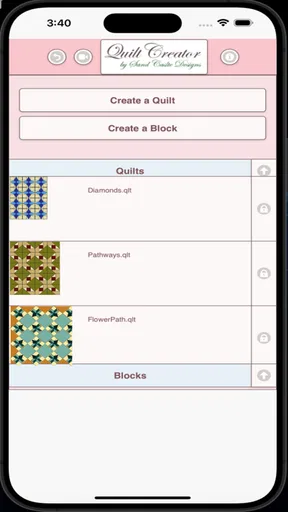
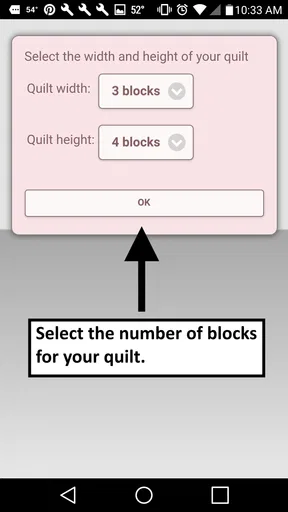
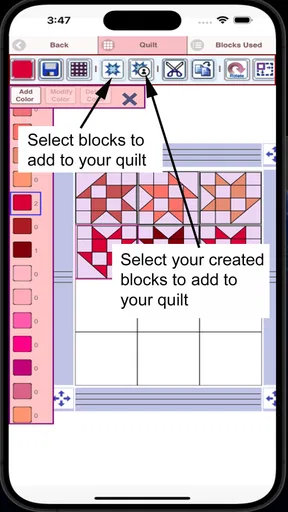
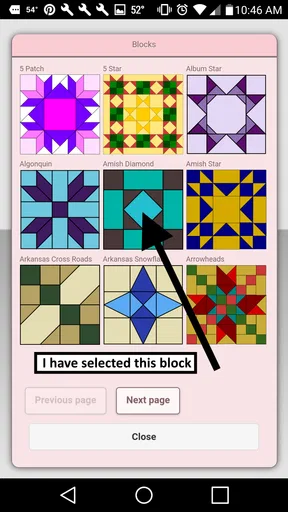
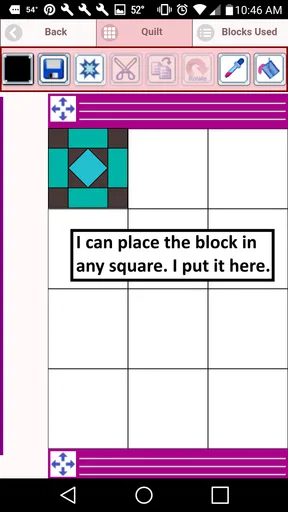
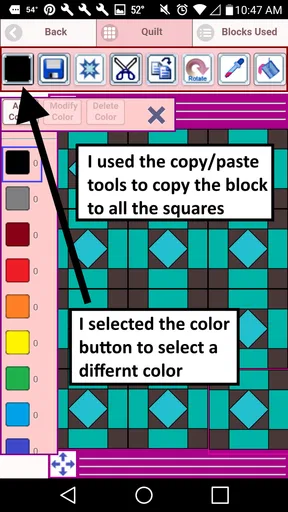
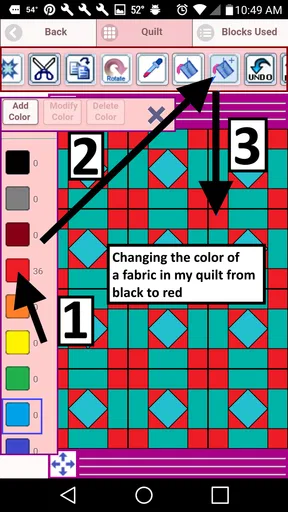
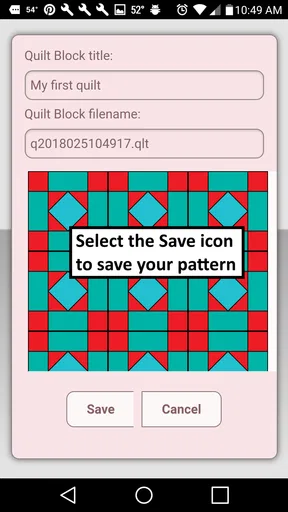
 Analysis by AppCompare
If you are curious about designing a quilt but do not yet know where to begin, Quilt Creator offers a simple place to explore block-based ideas. I found its appeal in the way it turns the first step into browsing: instead of staring at an empty canvas, you can look through a large collection of quilt blocks and start imagining how they might work together. It is an art and design app from Crochet Designs, available free to download, with optional purchases listed at $2.99 per item.
That sounds inviting, but my experience was more mixed than the cheerful concept suggests. The app is best understood as a lightweight quilt-planning tool rather than a complete replacement for a dedicated digital sewing studio. Its store summary promises more than 200 blocks to choose from, and that library is the main reason to try it. The practical question is whether browsing those blocks helps you reach a useful design quickly. For a beginner, the answer can be yes, provided you approach it as a visual planning exercise rather than expecting advanced fabric simulation or a full construction guide.
What to expect before you start designing
The first thing I would tell a friend is to keep expectations realistic. This is not an app that teaches every part of quilting from fabric selection to stitching technique. Its focus is the design side: selecting quilt blocks and arranging ideas around them. That makes it suitable for someone who wants inspiration for a weekend project, a way to compare block combinations, or a digital sketch before cutting fabric.
The catalog is the strongest starting point. Having over 200 blocks available means you can investigate familiar geometric patterns alongside options you may not have considered. For a new quilter, that variety is useful because it exposes how much a finished quilt can change when the block shape, repetition, or orientation changes. Even without advanced tools, simply comparing alternatives can help you decide whether your idea should feel orderly, busy, traditional, or more playful.
I would not install it expecting a polished professional workflow. The average rating is 1.4 from around 164 ratings, with about 81 written reviews, and that is an important warning sign for anyone who values refinement and reliability above all else. The app has reached over 10K installs, so it is not an entirely unknown experiment, but its reception suggests that some users have found the experience frustrating. I would treat it as something to test patiently rather than an automatic recommendation for serious quilt planning.
The Everyone content rating makes the app approachable for families and younger users who enjoy patterns and color ideas. A parent could use it with a child as a quiet design activity, while a beginner could use the block library to understand how repeated shapes create a larger composition. The app is also a reasonable choice for someone who wants inspiration without committing to a paid design package immediately.
On the other hand, experienced quilters may find the concept too narrow if they need precise measurements, fabric accounting, printable cutting instructions, or detailed project management. Those needs call for a more specialized quilting application, a desktop design program, or even a paper grid and colored pencils. Quilt Creator has value before that stage: it helps you decide what you like. It should not be your only tool once accuracy and production planning become essential.
Worth Reading Before You Choose

EA SPORTS FC Mobile 26 Is a Bigger Football Game, but It Takes Time

Flipboard Shows What News Apps Must Do Beyond the Feed

Switching to Android Auto Means Rethinking Your Driving Routine

Google Calendar Makes a Crowded Week Easier to Manage

Ludo King Makes the Most of the Minutes Between Plans

Baby Panda World Brings Quick Play to Modern Phones, but Its Game Library Feels Busy
Installing it without overthinking the first screen
Quilt Creator was released on January 16, 2018, and its current version is 26.2.3. It supports devices running Android 5.1 or later, which gives it a broad compatibility range for Android users. I would still make sure the device has a comfortable screen size, because pattern browsing and arranging visual elements are easier when you are not working on a very small display.
The download itself is free, but in-app purchases cost $2.99 per item. That matters because the free installation should be treated as a trial of the workflow, not as a guarantee that every part of the experience will be available without payment. I recommend spending time with the accessible material first and deciding whether the navigation feels comfortable before buying anything. If the basic interaction already feels awkward, an extra purchase will not solve that underlying problem.
When opening the app for the first time, I would resist the urge to plan an entire quilt immediately. The most useful early goal is much smaller: find a block that catches your eye, understand how the app presents it, and see whether you can move from browsing to a visible design idea. This approach reduces the frustration that often comes from trying to understand every control at once.
It also helps to have a real project in mind, even a modest one. Perhaps you want a cushion cover, a baby quilt, or a gift made from leftover fabric. You do not need to know the final dimensions yet. A simple purpose gives you a way to judge the blocks: a complicated pattern may be attractive on screen but difficult to reproduce with the fabric and time you actually have.
Turning the block library into a first success
My recommended first session is a short, deliberate exercise. Browse until you find three blocks with noticeably different structures. Do not choose only the prettiest one. Choose one that looks easy to repeat, one with more visual detail, and one that sits somewhere between those extremes. Comparing them side by side gives you a better feel for the app than scrolling through dozens of designs without a decision.
Next, imagine each block repeated across a small quilt. This is where a useful insight appears: a block that looks impressive alone may become visually crowded when repeated. Conversely, a modest block can create a strong overall rhythm when its lines meet neighboring blocks. I found that the library is most helpful when I stop judging individual tiles and start thinking about how their edges will interact.
A practical beginner workflow is to select a block for the main field and reserve a simpler idea for a border or accent. Even if the app does not replace a full layout planner, thinking in these two roles prevents a common mistake: filling every area with the most complicated pattern available. A quieter border can make a central design easier to read, and this is something you can decide before buying fabric.
Another useful habit is to keep notes outside the app about the blocks you prefer. Write down a short description such as “diagonal star,” “small repeating squares,” or “best for a calm border.” This may sound old-fashioned, but it prevents repeated searching when you return later. It also lets you connect a digital idea to the fabrics already in your home, which is where the design becomes practical rather than merely decorative.
For a realistic everyday scenario, imagine having twenty minutes after dinner while planning a handmade birthday gift. I would open the app, browse the block collection, choose a pattern that matches the recipient’s style, and then test whether a simpler neighboring block could frame it. I would not try to finish the whole quilt in that session. The meaningful success would be leaving with one clear direction and a short list of fabrics to consider.
Where first-time users may become confused
The main source of confusion is likely to be the difference between inspiration and production. Seeing a block does not automatically tell you how much fabric to buy, how to cut each piece, or how difficult the seams will be. A beginner may look at a visually balanced pattern and assume that the app has solved the construction problem. It has not. Use the displayed designs to make creative decisions, then verify the sewing details with a trusted quilting reference.
Another trap is assuming that more choice always means an easier decision. A library of over 200 blocks can be exciting, but it can also create choice overload. I recommend setting a limit before browsing, such as saving only three candidates for a small project. If you keep scrolling indefinitely, the app becomes a source of indecision instead of a design aid.
It is also worth separating the app’s visual appeal from the suitability of a block for your skill level. Some patterns may look manageable because they are shown as clean digital shapes. In fabric, small pieces, angled seams, and repeated alignment can demand much more patience. Before committing, ask yourself whether you can cut consistent pieces and match seams accurately. If not, choose a simpler block even if a more elaborate one looks more impressive on the screen.
Purchases deserve similar caution. Since items are priced individually at $2.99, I would not buy based on a quick glance or on the assumption that an additional block will transform the entire experience. First establish what kind of designer you are using the app to be: an idea collector, a beginner learning visual structure, or someone preparing a real quilt. The purchase is easier to judge once you know whether the app is already helping you reach decisions.
The low average rating should also change how you troubleshoot. If the interface feels dated, if navigation takes longer than expected, or if a design does not behave as you imagined, do not assume you are using it incorrectly. Some of the friction may simply be part of the app’s limitations. I would keep the first project small and avoid relying on it as the only record of an important commission or gift.
How it compares with paper, tutorials, and advanced design tools
Compared with graph paper and colored pencils, Quilt Creator is faster for browsing a large set of pre-made block ideas. Paper remains better when you want complete freedom to draw an unusual layout or annotate measurements directly. I like the app for discovery, while paper is more flexible for turning a chosen concept into a construction plan.
Compared with video tutorials, the app serves a different purpose. Tutorials are better for learning techniques such as seam matching, pressing, cutting, and assembly order. Quilt Creator can help you decide what pattern you want to attempt, but it does not replace hands-on instruction. A beginner will get the best result by pairing the visual inspiration with a reliable sewing lesson.
Compared with advanced quilting software, this app is less suitable for precision work. Professional tools generally appeal to users who need exact sizing, fabric placement, color testing, or printable plans. If your project depends on those details, I would move to a dedicated program once you have chosen a block. The advantage of Quilt Creator is that it can be a lighter first step, especially when you are not ready to learn a complicated interface.
That trade-off is important. A simpler app can help you begin because it does not demand that you understand every technical concept on day one. Yet simplicity becomes a weakness when your project grows. I see this app as a front-end idea board: useful for selecting a direction, less convincing as the complete journey from inspiration to finished quilt.
Who should use it and who should skip it
I would recommend Quilt Creator to a first-time quilter who feels intimidated by a blank page, a hobbyist looking for block inspiration, or a parent and child exploring patterns together. It can also suit someone who has fabric already and wants to think through possible motifs before making a decision. The free entry point makes experimentation less risky, although the in-app purchase model means you should evaluate the available material before spending.
I would skip it if you need exact project calculations, detailed cutting directions, or a modern professional design workflow. I would also skip it if a poor rating is likely to make you impatient with rough edges. In that case, a better-reviewed quilting tool or a notebook-based method may save time. The app is not a universal answer simply because it contains a large block collection.
For users who decide to keep it, the best next step is to move from browsing to a deliberately limited project. Pick one main block, choose a simple supporting idea, and test the combination with scraps or a quick paper sketch before purchasing fabric. This workflow turns the app’s strongest feature—its variety—into a manageable decision instead of an endless catalog.
My final view is cautiously positive for beginners who want visual inspiration and are willing to work around limitations. Crochet Designs has made Quilt Creator accessible as a free art and design app, and the block library can genuinely help someone find a starting point. Still, the 1.4 average rating and the individual purchase cost are reasons to proceed carefully. Use it to discover a quilt idea, not to replace the practical planning and sewing knowledge needed to build one.
If you approach it with that boundary in mind, the app can provide a reassuring first win: choosing a pattern that feels possible, imagining it in your own colors, and leaving the screen with a clear next action. For a complete digital quilting workspace, I would choose another option. For a beginner who needs a visual nudge before taking paper, fabric, and thread in hand, Quilt Creator is worth a measured trial.
Pros
- Simple tools make it easy to sketch quilt layouts quickly.
- Useful for testing color combinations before cutting fabric.
- Helps organize design ideas in one convenient mobile workspace.
- Good choice for beginners exploring quilt pattern concepts.
- Digital previews can reduce mistakes and wasted materials.
Cons
- Advanced quilters may find the design controls too limited.
- Small screens can make detailed block editing uncomfortable.
- Some features may require in-app purchases or upgrades.
- Digital designs may not perfectly reflect real fabric textures.
- Creating complex custom patterns can take time to learn.
FAQs for Quilt Creator
What is Quilt Creator and what can I do with it?
Quilt Creator is a design app for planning and creating quilt patterns on a mobile device. It is intended for beginners, hobbyists, and experienced quilters who want to experiment with block layouts, colors, fabrics, and repeated designs before starting a physical project. Depending on the version and device, you may be able to save, edit, preview, and share your quilt ideas digitally.
Is Quilt Creator suitable for beginners without quilting experience?
Yes, Quilt Creator can be useful for beginners because it allows you to explore patterns visually without immediately cutting fabric. The digital layout makes it easier to test color combinations and understand how individual blocks fit together. However, the app may not teach every practical skill, such as fabric preparation, accurate sewing, seam allowances, or finishing techniques, so beginners may still need a separate quilting guide.
Can I customize quilt colors, blocks, and pattern layouts?
Customization is one of the main reasons to use Quilt Creator. Users can generally experiment with different block arrangements, color schemes, and visual combinations to create a design that matches their project. The exact tools may vary by platform or app version, so some advanced options—such as importing personal fabric images, changing individual sections, or creating complex layouts—may not be available in every release.
Does Quilt Creator provide cutting measurements or sewing instructions?
Quilt Creator is primarily a digital planning tool, so you should not assume that every design automatically includes complete cutting measurements or step-by-step sewing instructions. Some patterns may offer useful dimensions or planning information, but users should carefully check the selected design before purchasing fabric. For accurate construction, confirm seam allowances, block sizes, fabric requirements, and assembly instructions with a trusted quilting reference.
Is Quilt Creator free to download, and are there in-app purchases?
The availability and pricing of Quilt Creator can differ between Android and iOS, as well as between app versions. The app may be free to install while offering optional purchases, premium design tools, additional pattern collections, or an ad-free experience. Before downloading, review the store listing for the current price, subscription details, supported devices, privacy information, and whether any essential features are restricted behind payment.


